Block and Unblock WordPress Users
Block and unblock WordPress user accounts with Blacklist Manager, review user status, force logout blocked users, and test safely.
User Blocking lets you block a WordPress user account, not just an email address, phone number, IP address, or order detail. Use it when you want a known customer account to stop logging in or continuing activity on the site.
Premium behavior: User Blocking is managed by Blacklist Manager Premium. If WooCommerce Advanced Accounts Premium is active and licensed, account blocking may be handled by that plugin instead.
What User Blocking Does
When a user account is blocked, Blacklist Manager marks that WordPress user with a blocked status. If the user tries to log in, they are logged out and shown the blocked user notice. If they are already logged in, the plugin can force them out on the next page load.
- It affects an existing WordPress user account.
- It is useful for repeat customers who already have an account.
- It is separate from blocking a guest checkout email, phone number, IP address, domain, or address.
- Manual block and unblock actions are recorded in Activity Logs when Premium logging is active.
When to Use User Blocking
- Use it when a registered customer account is clearly connected to fraud, chargebacks, abuse, or policy violations.
- Use it after reviewing the order, account history, and blacklist details.
- Do not use it only because one order looks unusual. Use suspects or risk score first if you are unsure.
- Do not block administrator accounts. Blacklist Manager prevents blocking administrators from the user action workflow.
Enable User Blocking
- Go to Blacklist Manager > Settings > General.
- Find the User section.
- Enable User blocking.
- Click Save Settings.
On the free/core settings screen, this option is shown as Block user when add to blocklist the order placed by that user. Premium also adds more user-management controls.

Block a User From the Users Page
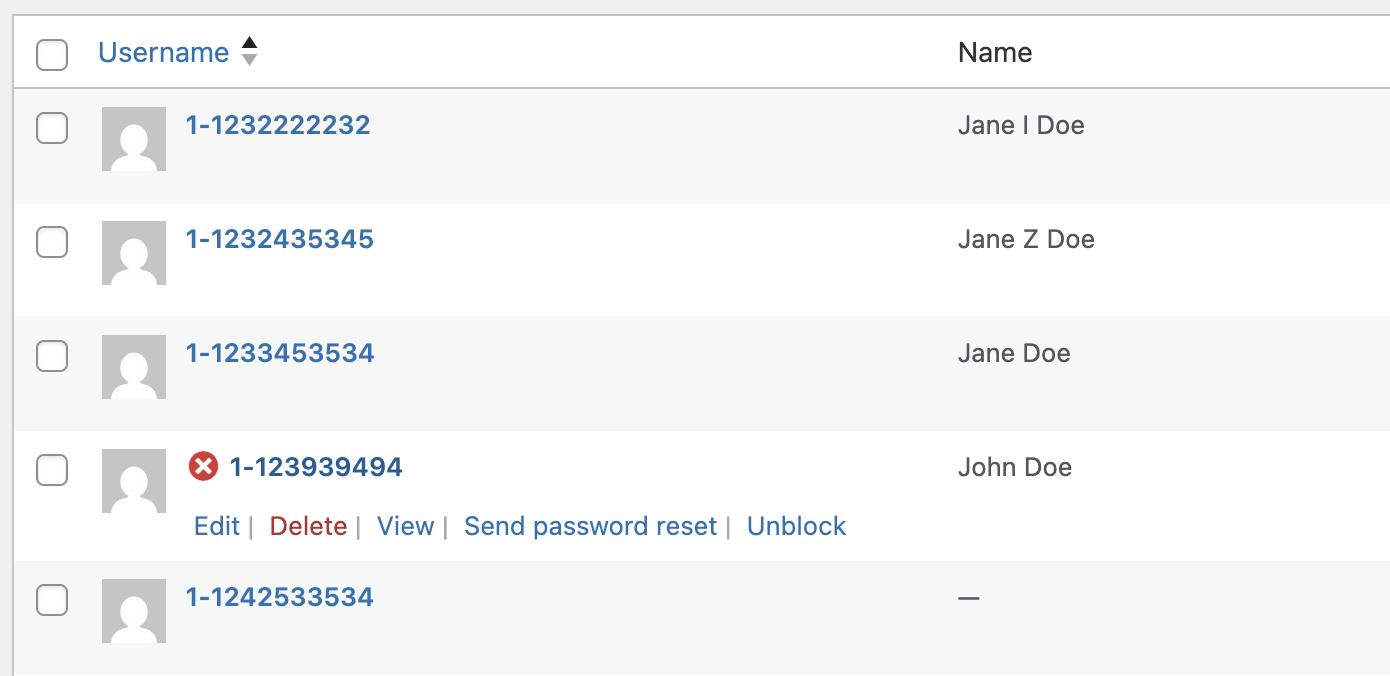
- Go to Users > All Users.
- Find the customer account you want to block.
- Hover over the user row.
- Click Block.
- Confirm the admin notice that the user was blocked.
After blocking, the user row is marked as blocked, and the user can be filtered from the Users table using the blocked users filter.
Unblock a User From the Users Page
- Go to Users > All Users.
- Use the user status filter and choose Blocked users if needed.
- Find the blocked user account.
- Click Unblock.
- Confirm the admin notice that the user was unblocked.
Block or Unblock From the User Profile
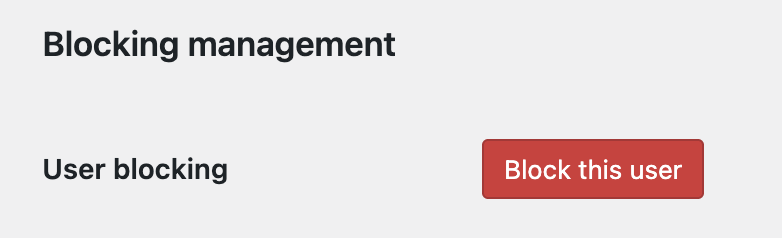
You can also open the user profile and use the Blocking management section.
- Go to Users > All Users.
- Open the user profile.
- Find Blocking management.
- Click Block this user or Unblock this user.
- Update the profile.
When you manually block a user from the profile, Blacklist Manager can also add that user email to the blocklist if it is not already there.
Block a User From an Order
If a WooCommerce order belongs to a logged-in customer account, Blacklist Manager can block that user account when you add the order/customer details to the blocklist and User Blocking is enabled.
- Open the WooCommerce order.
- Review the customer, payment, address, risk score, and blacklist results.
- Use the Blacklist Manager order action to add the customer details to the blocklist.
- If the order belongs to a registered user and User Blocking is enabled, the linked user account can also be blocked.
For the full order workflow, read Use Blacklist Actions on the Edit Order Page.
Automatic User Blocking
Some automated block actions can also block the linked WordPress user account when the order belongs to a registered customer and User Blocking is enabled.
- If an automation or risk score action adds the customer to the blocklist, the linked user account may also be marked as blocked.
- This only applies when the order has a user account attached. Guest orders do not have a WordPress user account to block.
- The action can appear in Activity Logs as a blocked user attempt or manual block/unblock event.
For score-based blocking behavior, read Configure Risk Score Thresholds and Score Actions.
What the Blocked User Sees
When a blocked user tries to log in or continues browsing while logged in, Blacklist Manager logs them out and shows the blocked user notice.
You can customize this message in the customer notices settings. Use a clear message that tells legitimate customers how to contact support if the block is a mistake.
For notice text, read Configure Customer Notices.
User Blocking vs Other Blocking
| Feature | What it blocks | Best use |
|---|---|---|
| User blocking | A specific WordPress user account. | Known registered customers who should not log in or continue using the account. |
| Email blocking | An email address at checkout, registration, comments, reviews, or forms depending on settings. | Guest customers or repeat abuse from the same email. |
| Phone blocking | A phone number at checkout or supported forms. | Repeat abuse tied to the same phone number. |
| IP blocking | An IP address. | Abuse from a specific network or visitor source. |
| Address blocking | A billing or shipping address. | Repeat abuse tied to the same delivery or billing location. |
Permissions and Safety
- Only staff who can edit users should block or unblock users.
- Administrator accounts should not be blocked.
- Use Activity Logs to confirm who blocked or unblocked a user.
- Do not block a user account if you only need to review one suspicious order. Use suspect status first.
For staff access rules, read Configure Staff Permissions. For log review, read Use Activity Logs to Review Blocked Attempts.
Test User Blocking
- Create or choose a test customer account.
- Enable User blocking.
- Block the test user from Users > All Users.
- Open a private browser window and try to log in as that test user.
- Confirm the user is logged out and sees the blocked user notice.
- Unblock the test user and confirm they can log in again.
Expected Result
After setup, staff should be able to block or unblock registered customer accounts, blocked users should be forced out or prevented from logging in, and user block actions should be traceable in Activity Logs.
Continue from Blacklist Manager Premium documentation to the complete product workflow.
Evaluate product scope on the money page, use the pillar Guide for decisions and trade-offs, and return here for exact configuration.
Did this guide answer your question?
Still stuck?
Open a support request and include this article title, your plugin version, and what you already tried.
Open Support