Block Billing and Shipping Addresses
Block risky billing and shipping addresses in Blacklist Manager, choose matching mode, add address rules, and test checkout safely.
Address blocking lets you stop WooCommerce orders from known risky billing or shipping addresses. Use it when a risky customer changes their email, phone number, or IP address but continues using the same delivery location.
Premium required: address blocking is a Blacklist Manager Premium feature and requires WooCommerce.
When to Use Address Blocking
Address blocking is stronger than blocking a single email address. Use it carefully because a shared building, office, forwarding service, or family address may include legitimate customers.
- Use it when the same delivery address is repeatedly connected to chargebacks, fake orders, abusive customers, or policy violations.
- Use it when a customer keeps changing email or phone details but uses the same billing or shipping address.
- Do not use it for one unclear order unless you have enough evidence.
- For uncertain cases, use suspects, risk score, or automation review before direct blocking.
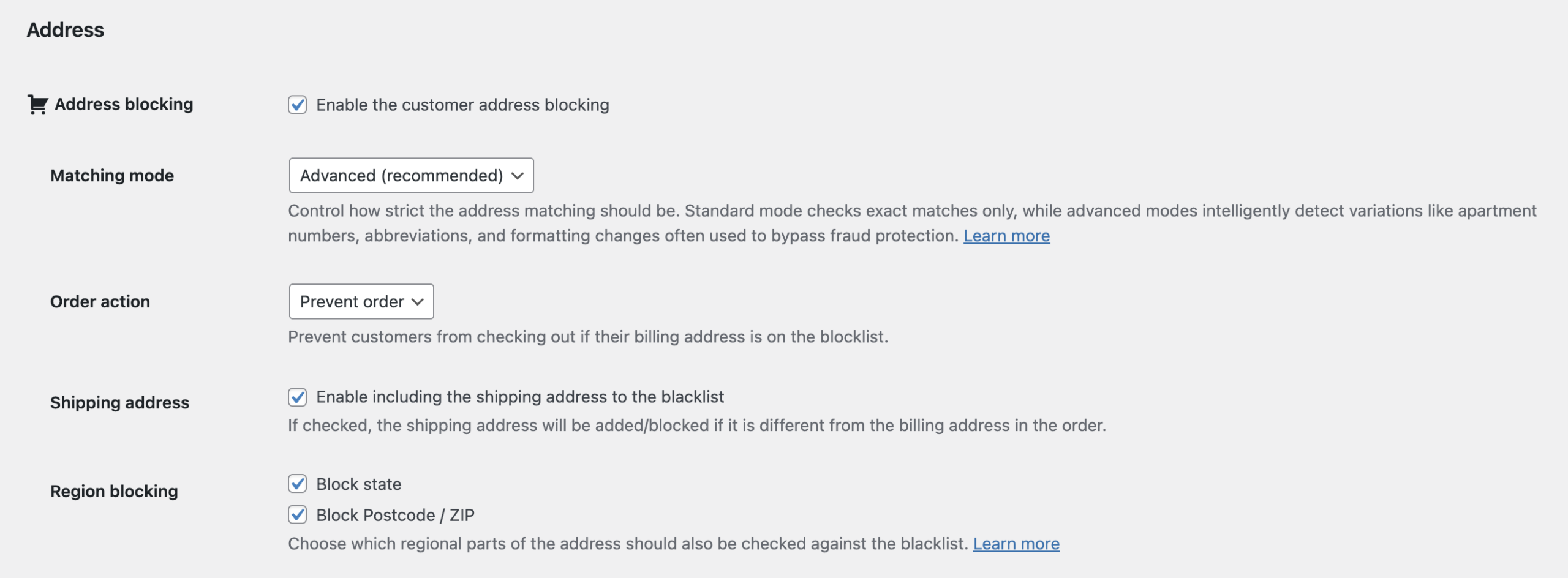
Enable Address Blocking
- Go to Blacklist Manager > Settings > General.
- Find the Address section.
- Enable Address blocking.
- Set Order action to Prevent order if you want checkout stopped when a blocked billing address is used.
- Enable Shipping address if you also want Blacklist Manager to check and store shipping addresses when they are different from billing addresses.
- Click Save Settings.
Choose a Matching Mode
The matching mode controls how strictly Blacklist Manager compares checkout addresses with blocked address entries.
| Mode | What it does | When to use it |
|---|---|---|
| Standard | Checks exact normalized address matches. | Use this when you want the safest starting point and fewer false positives. |
| Advanced | Detects more address variations, including formatting differences, abbreviations, and apartment-style changes that may be used to bypass protection. | Use this after testing, or when repeat abuse continues with slightly changed addresses. |
Recommended starting point: use Standard first, then move to Advanced if repeat abuse continues with small address variations.
Enable Region Blocking
Region blocking lets you block broader address parts instead of a full street address.
- Block state: checks the customer address against blocked state or province entries.
- Block Postcode / ZIP: checks the customer address against blocked postcode or ZIP entries.
Use region blocking carefully. Blocking a postcode or state can affect many legitimate customers, especially in dense cities or shared delivery areas.
Add an Address From the Dashboard
- Go to Blacklist Manager > Dashboard.
- Open the Address tab. This tab appears when Premium is active, WooCommerce is active, and address blocking is enabled.
- Click Add address.
- Choose the country. If your store sells to one country only, the country may already be fixed.
- Enter the address details you want to block.
- Click Submit.
What You Can Add
The Address tab supports different rule types.
| Rule type | Required fields | Best use |
|---|---|---|
| Full address | Address 1, city, postcode or ZIP, state or province when available, and country. | Block a specific delivery or billing location. |
| Postcode / ZIP | Postcode or ZIP and country. | Block a risky postcode area only when you are confident it is necessary. |
| State / Province | State or province and country. | Use rarely, because it can block a large number of legitimate customers. |
Add an Address From an Order
You can also add billing or shipping addresses from the WooCommerce edit order page. This is useful when reviewing a suspicious order and deciding that the address should be blocked for future checkouts.
- Open the WooCommerce order.
- Review the billing and shipping address details.
- Use the Blacklist Manager actions on the order page to add the address to the blocklist when the order is confirmed risky.
- After adding it, place a safe test checkout using the same address to confirm the rule works as expected.
For the full order-page workflow, read Use Blacklist Actions on the Edit Order Page.
How Checkout Blocking Works
When a customer checks out, Blacklist Manager normalizes the billing address and compares it with blocked address entries. If shipping address blocking is enabled and the shipping address is different from the billing address, the shipping address is checked too.
- If the address matches and Order action is Prevent order, checkout is stopped before the order is completed.
- If the address does not match, checkout continues normally.
- Blocked address attempts are recorded in Activity Logs when Premium logging is active.
Test Address Blocking
- Add a test address to the Address tab.
- Open an incognito browser or test customer account.
- Add a product to cart and go to checkout.
- Enter the same billing address you added to the blocklist.
- Place the order.
- Confirm checkout is stopped with your configured notice.
- Go to Blacklist Manager > Activity logs and confirm a blocked address attempt was recorded.
Address Blocking vs Address Automation
Address blocking and address automation are related, but they are not the same.
| Feature | Purpose |
|---|---|
| Address blocking | Blocks checkout when the billing or shipping address is already on the address blocklist. |
| Phone/Email vs Address | Detects when the same phone or email is used with a different address across orders. |
| Device vs Address | Detects when the same device is used with different billing or shipping addresses. |
| Billing vs Shipping | Detects when the billing and shipping addresses are different in the same order. |
| IP vs Address | Compares IP coordinates with address coordinates using Google Maps distance rules. |
For automation rules that use address signals, read Automation Rules: Customer Identity and Address Checks and Automation Rules: Device and Behavior Checks.
Avoid False Positives
- Do not block broad regions unless you clearly need to.
- Be careful with apartments, office buildings, hotels, warehouses, campuses, and package forwarding services.
- Start with Standard matching mode if you are unsure.
- If a legitimate customer is blocked, remove the address rule or adjust the matching mode before testing again.
If real customers are being blocked, also read Troubleshooting: Real Customers Are Being Blocked.
Expected Result
After setup, Blacklist Manager should stop checkout when a blocked billing address is used, optionally check a different shipping address, and record the blocked attempt for later review.
Continue from Blacklist Manager Premium documentation to the complete product workflow.
Evaluate product scope on the money page, use the pillar Guide for decisions and trade-offs, and return here for exact configuration.
Did this guide answer your question?
Still stuck?
Open a support request and include this article title, your plugin version, and what you already tried.
Open Support