Use Import, Export, and Cleanup Tools
Use Blacklist Manager import, export, whitelist merge, activity cleanup, and device cleanup tools without losing important records.
The Tools area is for maintenance tasks: importing many entries, exporting a backup, merging trusted completed orders to the whitelist, and cleaning old logs or device data.
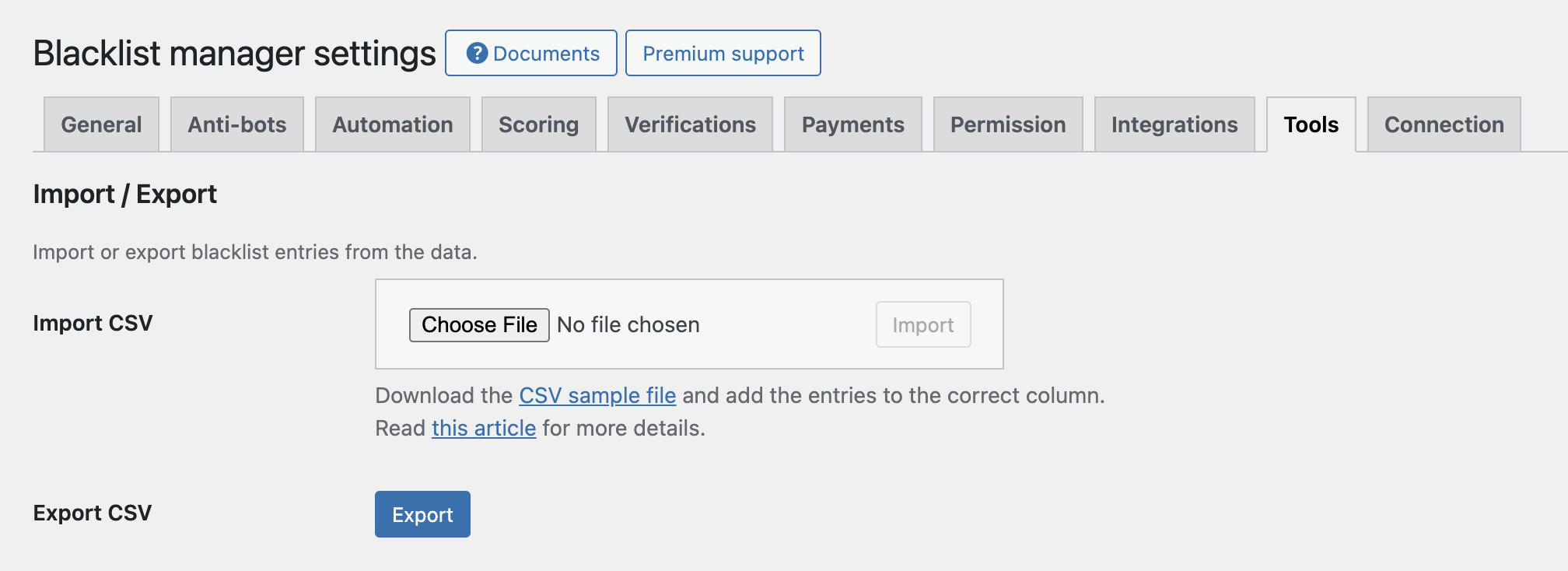
Before Importing CSV
- Export your current list first if the site already has important blacklist data.
- Download the sample CSV from the Tools page if available.
- Keep each value in the correct column, such as email, phone, IP, domain, name, or address.
- Remove duplicate rows before importing.
- Start with a small file first, such as 5 to 10 rows.
Import a CSV File
- Go to Blacklist Manager → Settings → Tools.
- Find Import / Export.
- Choose your CSV file.
- Run the import.
- Read the success or error message after import.
- Go to Dashboard and confirm the imported entries appear in the correct tabs.
Export Your Blacklist Data
- Go to Blacklist Manager → Settings → Tools.
- Find Export CSV.
- Run the export.
- Store the file somewhere safe if it is used as a backup.
Export before large changes, before importing data from another system, and before testing a new cleanup rule.
Whitelist Merge From Completed Orders
The whitelist merge tool can add customer details from completed orders to the whitelist. This helps trusted repeat customers avoid unnecessary friction from verification or blacklist checks.
Only use this if your completed order status reliably means the customer is legitimate. If your team marks orders completed before fraud review, do not merge completed orders automatically.
Clean Activity Logs
For help reading log entries before cleaning them, see Use Activity Logs to Review Blocked Attempts.
- Go to Blacklist Manager → Settings → Tools.
- Find Activity log retention.
- Choose whether to keep only a maximum number of newest logs or delete logs older than a number of days.
- Use conservative values first. Logs are useful when diagnosing false positives.
- Save settings.
When to Clean Device Data
If Premium Device Identity is active, device records and device-order links can grow over time. Clean old device data only when you no longer need old device history for fraud review.
Use device cleanup more carefully than activity log cleanup. Old device history can help detect repeat abuse from the same browser or device.
Blacklist Connection Is Separate
If you need to sync blacklist data between multiple stores, use Set Up Blacklist Connection Between Stores. Connection has its own host/sub site workflow and should be configured separately from normal import/export maintenance.
Recommended Maintenance Routine
- Export data before importing or cleaning anything.
- Test imports with a small file first.
- Review imported entries in the dashboard after import.
- Keep enough activity logs to investigate recent false positives.
- Clean device data only after deciding how long device history is useful for your fraud review process.
Expected Result
You should be able to move blacklist data in and out safely, keep backups, and avoid storing more old log or device data than your store needs.
Continue from Blacklist Manager Premium documentation to the complete product workflow.
Evaluate product scope on the money page, use the pillar Guide for decisions and trade-offs, and return here for exact configuration.
Did this guide answer your question?
Still stuck?
Open a support request and include this article title, your plugin version, and what you already tried.
Open Support