Review Risk Score and Global Blacklist Results on an Order
Review Blacklist Manager risk scores, matched checks, Stripe fraud data, and Global Blacklist results inside an order.
The edit order page shows why Blacklist Manager marked an order as safe, suspicious, or high risk. This is the main screen to use before deciding whether to ship, hold, cancel, suspect, or block a customer.
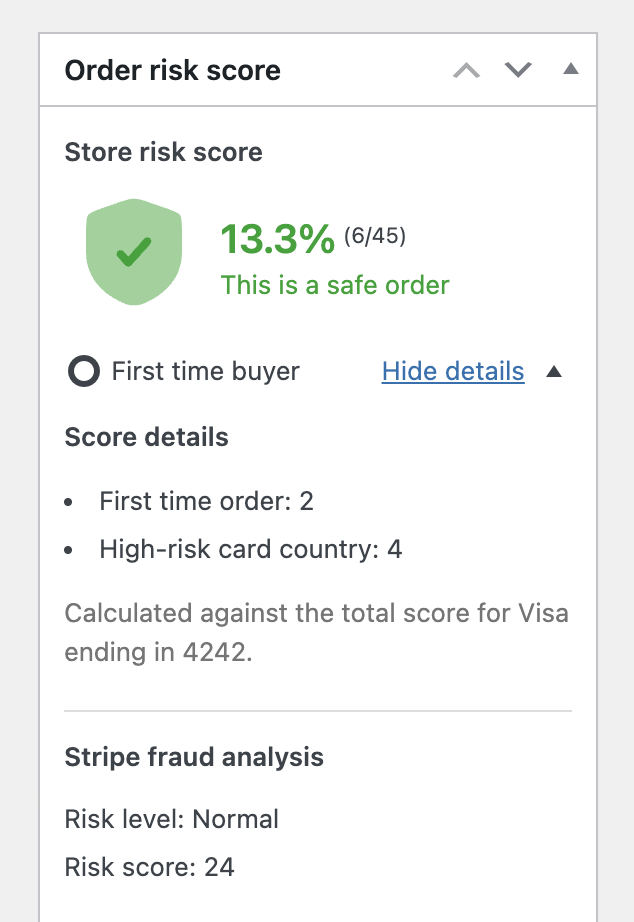
Where to Find It
- Go to WooCommerce → Orders.
- Open the order you want to review.
- Look for the Order risk score box in the order sidebar.
The box appears when either local order risk scoring or Global Blacklist is enabled. It is not shown on the “Add new order” screen.
Store Risk Score
The Store risk score section is your local store score. It is calculated from the rules you enabled under Settings → Scoring.
The box shows:
- The score percentage.
- The raw score, such as 12/50.
- The risk level: safe, moderately risky, highly risky, or severe risky.
- Whether the buyer looks like a first-time buyer or a re-buyer.
- The payment method total used for the calculation.
The payment method total matters because Blacklist Manager can calculate score totals differently for payment families such as Stripe, PayPal, Mollie, or unknown gateways.
Use Show Details
Click Show details to see which checks added points to the order.
Possible checks include:
- First time order.
- Phone or email used with a different address.
- Phone or email used with a different IP address.
- Same device used with different phone or email details.
- Same device used with different addresses.
- Device identity linked to too many emails, phones, or user accounts.
- Billing and shipping address mismatch.
- High order value.
- Too many order attempts.
- Hosting IP, proxy, VPN, or TOR usage.
- IP country or region mismatch.
- IP location far from the order address.
- Card country, AVS, high-risk card country, or PayPal payer mismatch checks.
How to Interpret the Details
Use the details to understand the pattern, not only the final number.
| What you see | What it usually means |
|---|---|
| Only First time order | The order may simply be from a new customer. Review only if the order value or product type is sensitive. |
| Device with multiple identities | The same browser/device may be placing orders with different customer details. |
| Proxy, VPN, hosting IP, or location mismatch | The customer connection may not match the provided billing/shipping details. |
| Payment mismatch checks | The payment signal does not fully match the customer information on the order. |
Stripe Fraud Analysis
If Stripe fraud analysis is enabled in Settings → Payments and Stripe has risk data for the order, the metabox can also show Stripe risk level, risk score, and fraud flags.
This is separate from the Blacklist Manager score. Treat it as an additional payment-provider signal.
Global Fraud Check
If Global Blacklist is enabled, the same metabox can show a Global fraud check section.

Possible results include:
- Clear: no blocking decision was returned.
- Needs review: some details matched previous fraud-related reports.
- High risk: strong fraud-related signals were found. Do not fulfill until manually verified.
- Check skipped: the monthly Global Blacklist check limit was reached.
- Pending check: the background check has not completed yet.
When to Use Recheck Now
If a Global Blacklist result is still pending after the order has been created for a short time, the box can show Recheck now. Use it when you need a result before deciding what to do with the order.
What to Do After Reviewing
- If the order looks safe, continue your normal fulfillment process.
- If the order needs verification, contact the customer or keep the order on hold.
- If the order is clearly abusive, use the Blacklist actions panel on the same order page to add the customer to the Blocklist.
- If you only want to watch the customer, add the order details to Suspects instead of Blocklist.
Continue from Blacklist Manager Premium documentation to the complete product workflow.
Evaluate product scope on the money page, use the pillar Guide for decisions and trade-offs, and return here for exact configuration.
Did this guide answer your question?
Still stuck?
Open a support request and include this article title, your plugin version, and what you already tried.
Open Support