Configure Admin Email Notifications
Configure Blacklist Manager admin email notifications for suspect orders, blocked attempts, registrations, comments, reviews, and forms.
Admin email notifications help your team know when Blacklist Manager detects suspect or blocked activity. These emails are internal alerts. They are not shown to customers.
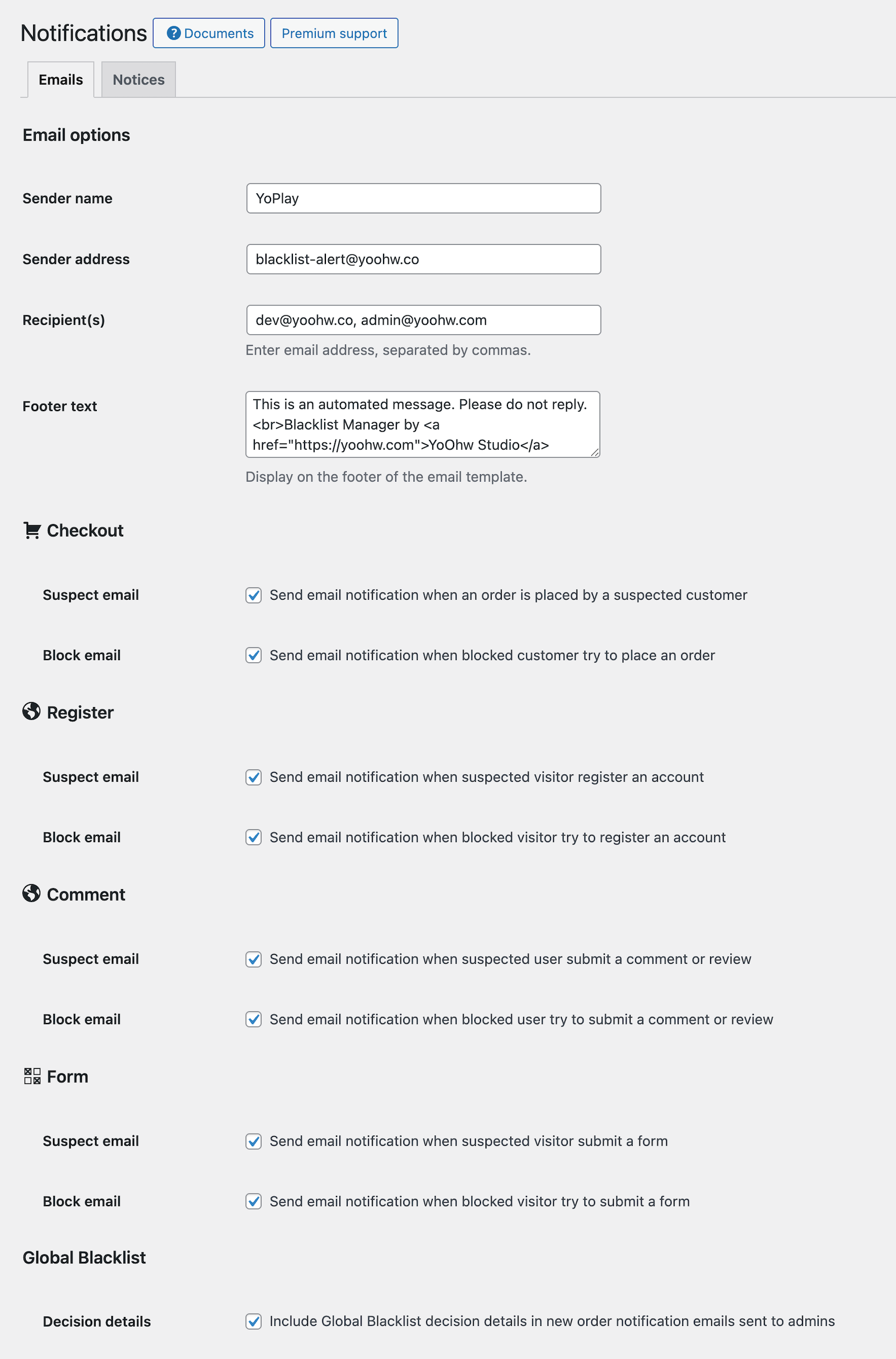
Simple version: Send alerts to one monitored inbox, enable only the alerts your team will actually review, and avoid sending internal blacklist details to customer-facing inboxes.
Where To Configure Email Notifications
- Go to Blacklist Manager > Notifications.
- Open the Emails tab.
- Enter sender and recipient details.
- Enable the alert types your team needs.
- Click Save Changes.
Email Sender and Recipients
Use a sender name your team recognizes, such as your store name or security inbox name.
For Recipient(s), enter one or more email addresses. Separate multiple addresses with commas.
Recommended recipient examples:
- A shared fraud review inbox.
- A store owner inbox for smaller stores.
- A support lead inbox if support staff review blocked customers.
Avoid sending these alerts to a general customer support inbox if many people have access and do not need to see blacklist information.
Checkout Alerts
If WooCommerce is active, you can enable checkout-related admin alerts.
- Suspect email: sends an email when an order is placed by a suspected customer.
- Block email: sends an email when a blocked customer tries to place an order.
Enable Suspect email when your team manually reviews orders before fulfillment. Enable Block email when you want a record of stopped checkout attempts.
Registration Alerts
With Premium, Blacklist Manager can send emails when a suspected or blocked visitor tries to register an account.
- Suspect email: alerts when a suspected visitor registers.
- Block email: alerts when a blocked visitor tries to register.
Enable these if account creation is important to your store, membership site, wholesale store, or customer portal.
Comment and Review Alerts
With Premium, Blacklist Manager can alert admins when suspect or blocked users submit comments or product reviews.
This is useful when you allow public product reviews and want to monitor abusive reviewers, spam behavior, or repeat problem users.
Form Alerts
If Contact Form 7, Gravity Forms, or WPForms is active, Premium can send email alerts for suspect or blocked form submissions.
Use form alerts for important forms such as quote requests, warranty claims, wholesale applications, contact forms, or support requests.
Global Blacklist Details in Admin Order Emails
The Emails tab can include Global Blacklist decision details in new order notification emails sent to admins.
Keep this enabled if order reviewers need to see why an order was allowed, challenged, blocked, or marked risky. Disable it only if your order notification emails are forwarded to people who should not see blacklist decision details.
Email Templates and Footer Text
Blacklist Manager uses HTML email templates for order alerts and general alerts. Premium also allows email footer text customization.
Keep internal email content action-focused:
- Tell the reviewer what happened.
- Include the order or customer context when available.
- Tell the reviewer what to check next.
- Do not add customer-facing language to internal alerts.
Recommended Setup
- Use one monitored inbox for blacklist alerts.
- Enable checkout suspect alerts if orders require manual review.
- Enable checkout block alerts if you need an audit trail of blocked attempts.
- Enable registration, comment, review, and form alerts only if your team will review them.
- Keep Global Blacklist details enabled for admin order emails when fraud review matters.
Test Email Notifications
- Confirm normal WordPress emails are working on the site.
- Enable one notification type.
- Trigger a controlled suspect or block test.
- Confirm the email arrives in the expected inbox.
- Check spam or quarantine folders if the email does not arrive.
Troubleshooting
Emails Are Not Arriving
Check the recipient field, confirm the notification checkbox is enabled, and verify that WordPress can send email. If emails are unreliable, use an SMTP plugin or transactional email service.
Too Many Alerts Are Being Sent
Disable alerts that your team does not review. Start with checkout alerts only, then add registration, comment, review, or form alerts later if needed.
Alerts Go To the Wrong Team
Update the Recipient(s) field in the Emails tab. If multiple teams need alerts, use a shared inbox or distribution address instead of many individual addresses.
Continue from Blacklist Manager Premium documentation to the complete product workflow.
Evaluate product scope on the money page, use the pillar Guide for decisions and trade-offs, and return here for exact configuration.
Did this guide answer your question?
Still stuck?
Open a support request and include this article title, your plugin version, and what you already tried.
Open Support