Configure Staff Permissions
Configure Blacklist Manager staff permissions for dashboard access, order review actions, notifications, activity logs, and settings.
Use staff permissions to control which WordPress roles can manage Blacklist Manager. This is useful when store managers or support staff need to review risk information, but should not have full administrator access.
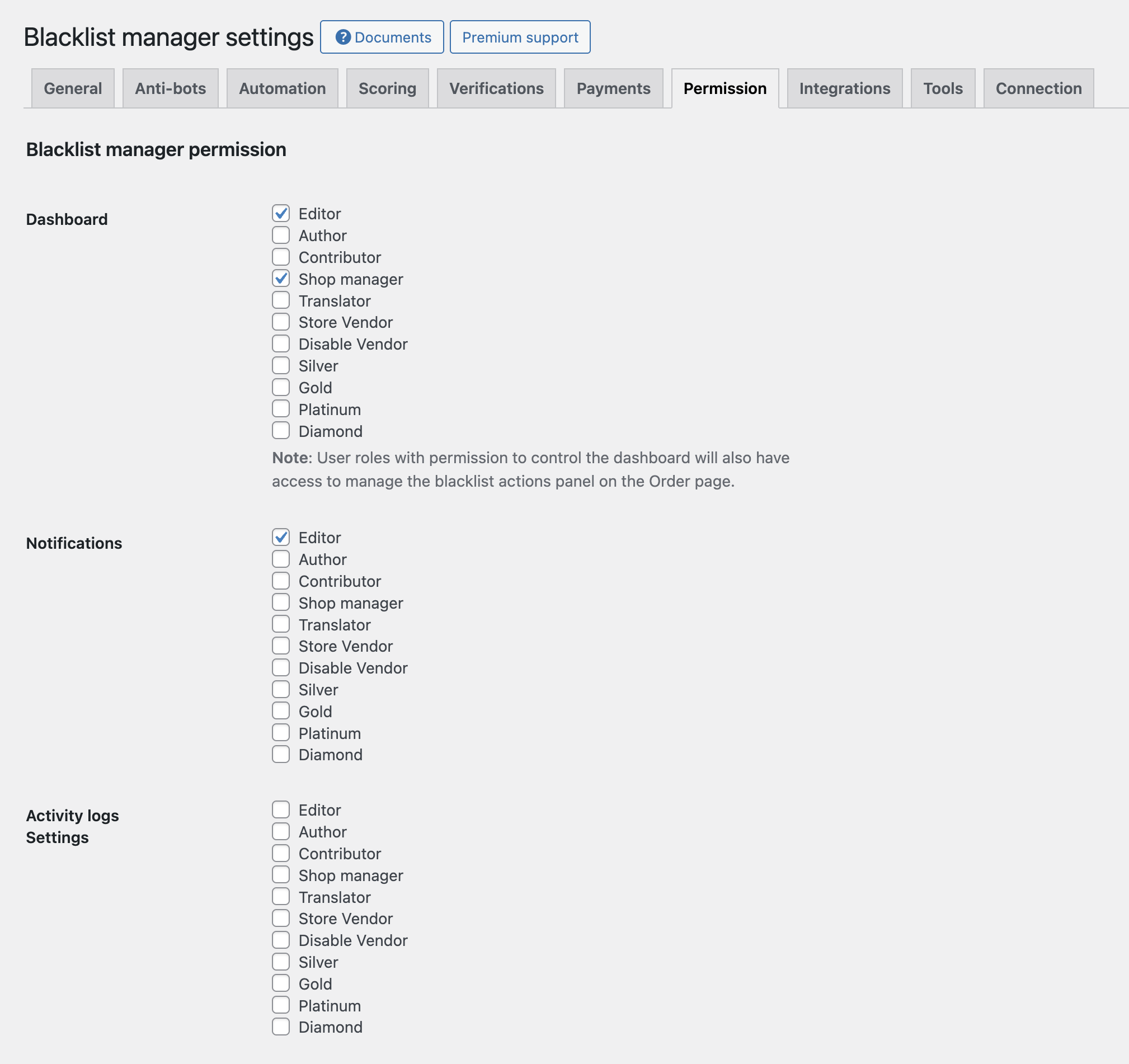
Simple version: Give staff only the access they need. Do not give notification or settings access to users who only review orders.
Where To Configure Permissions
- Go to Blacklist Manager > Settings.
- Open the Permission settings area.
- Select the roles allowed to access each area.
- Click Save Changes.
Permission settings are available in Blacklist Manager Premium. Administrators always keep access.
Dashboard Permission
Dashboard permission gives selected roles access to review and manage blacklist records. Use this for trusted staff who handle risky customers, blocked details, or manual fraud review.
This permission also gives access to the blacklist actions panel on the WooCommerce edit order page. That means the user can take actions such as marking customer details as suspect, blocked, or safe from the order screen.
Only give Dashboard permission to staff who understand how blacklist actions affect future customers and orders.
Notifications Permission
Notifications permission gives selected roles access to Blacklist Manager > Notifications.
Users with this access can change:
- Admin email sender and recipients.
- Email notification options.
- Customer-facing notices.
- Access prevention messages.
Keep this permission limited. A wrong recipient can send security alerts to the wrong inbox. A bad customer notice can confuse customers or reveal too much about your protection rules.
Activity Logs and Settings Permission
The permission screen controls access to activity logs and settings together. Give this access only to users who are allowed to change protection behavior.
Settings access can affect checkout blocking, IP behavior, verification, automation, risk score, integrations, and other protection rules. If a user only needs to review risky orders, Dashboard permission is usually enough.
Recommended Setup
- Administrators: full access.
- Shop managers: Dashboard access if they review risky orders.
- Support staff: Dashboard access only when they are trained to handle blacklist decisions.
- Editors, authors, customers, subscribers: no Blacklist Manager permissions.
Review permissions whenever you add new staff, create a new role, or change who handles order review.
How To Test Permissions
- Create or use a test account with the role you configured.
- Log in as that user in a private browser window.
- Confirm the user can access only the expected Blacklist Manager screens.
- If the user has Dashboard permission, open a test WooCommerce order and confirm the blacklist actions panel appears only when intended.
Troubleshooting
A Staff User Cannot See the Menu
Confirm their WordPress user role is selected in the correct permission area. Also confirm Blacklist Manager Premium is active.
A Staff User Can Edit Too Much
Remove the role from Notifications or Settings permission. If the user only needs order review access, keep only Dashboard permission.
The Order Page Shows Blacklist Actions
This is expected for users with Dashboard permission. Remove Dashboard permission if that role should not manage blacklist actions from order details.
Staff who manage user blocks should have the correct user-editing permissions. For the workflow, see Block and Unblock WordPress Users.
Continue from Blacklist Manager Premium documentation to the complete product workflow.
Evaluate product scope on the money page, use the pillar Guide for decisions and trade-offs, and return here for exact configuration.
Did this guide answer your question?
Still stuck?
Open a support request and include this article title, your plugin version, and what you already tried.
Open Support